Computers & PCs
Whether you’re typing an email, editing photos, gaming with friends, or running a business, computers have become the indispensable tools that power modern life. Yet for many people, the world of PCs remains frustratingly opaque—a maze of technical jargon, confusing specifications, and seemingly endless options. The good news? Understanding computers doesn’t require an engineering degree. With the right foundation, anyone can make informed decisions about the technology they use every day.
This comprehensive resource will walk you through everything you need to know about computers and PCs. We’ll demystify the core components that make these machines work, compare different types of systems, explore operating environments, and equip you with practical knowledge to choose, maintain, and upgrade your computer with confidence. Think of this as your roadmap to becoming truly comfortable with the technology that shapes how we work, create, and connect.
Understanding Different Types of Computers
Not all computers are created equal, and understanding the distinctions between various types helps you align your choice with your actual needs. The computer landscape has evolved dramatically, offering options ranging from compact portables to powerful stationary workhorses.
Desktop Computers: Power and Customization
Desktop PCs remain the go-to choice for users who prioritize performance, upgradability, and value. These systems typically consist of a separate tower (containing all the core components) and external peripherals like monitors, keyboards, and mice. The primary advantage? Desktops offer superior cooling capabilities, allowing components to run at peak performance for extended periods without thermal throttling—a common issue in more compact designs.
Desktops also shine when it comes to future-proofing. Need more storage in two years? Simply add another drive. Want better graphics performance? Swap out the graphics card. This modularity means a well-built desktop can remain relevant for significantly longer than most alternatives, with individual components upgraded as needed rather than replacing the entire system.
Laptops and Notebooks: Portability Meets Capability
Laptops have transformed from bulky portable workstations into sleek, capable machines that often rival desktop performance. Modern laptops integrate the screen, keyboard, trackpad, and all internal components into a single portable package, typically weighing between 2 to 6 pounds. This portability comes with trade-offs: laptops generally cost more than equivalently powerful desktops, offer limited upgrade options, and may throttle performance to manage heat and preserve battery life.
However, recent advancements in processor efficiency have dramatically narrowed the performance gap. For professionals who work across multiple locations, students moving between classes and dorms, or anyone who values workspace flexibility, the convenience of a laptop often outweighs these limitations.
Specialized Systems: Purpose-Built Performance
Beyond mainstream desktops and laptops, specialized systems target specific use cases. Workstations are engineered for professional applications like 3D modeling, video editing, or scientific computing, featuring enhanced reliability, error-correcting memory, and professional-grade graphics cards. Gaming PCs prioritize high-performance graphics cards, fast processors, and advanced cooling systems to deliver smooth gameplay at high resolutions. Meanwhile, all-in-one computers integrate components behind the display, offering a space-saving compromise between desktops and laptops.
The Core Components That Power Your PC
Every computer, regardless of form factor, relies on the same fundamental components working in harmony. Understanding these building blocks empowers you to evaluate specifications meaningfully rather than getting lost in marketing buzzwords.
Processor (CPU): The Brain of Your Computer
The Central Processing Unit executes instructions and coordinates activities across your entire system. Think of it as a highly efficient conductor orchestrating a symphony—every calculation, every command, every operation flows through this critical component. Modern CPUs feature multiple cores (essentially individual processors within a single chip), allowing them to handle numerous tasks simultaneously.
For everyday computing—web browsing, document editing, video streaming—a quad-core processor provides plenty of capability. More demanding workloads like video editing, 3D rendering, or running virtual machines benefit significantly from processors with six, eight, or even more cores. Clock speed, measured in gigahertz (GHz), indicates how quickly each core processes instructions, though comparing speeds across different processor generations or manufacturers rarely tells the full performance story.
Memory and Storage: RAM vs Hard Drives
Many people confuse these two distinct types of memory, but understanding the difference is crucial. RAM (Random Access Memory) serves as your computer’s short-term memory—a high-speed workspace where active programs and data reside while you’re using them. When you close a program or shut down your computer, RAM contents disappear. More RAM allows you to run more applications simultaneously without slowdowns; currently, 8GB represents a practical minimum, while 16GB or 32GB suits more demanding users.
Storage drives, by contrast, provide long-term memory where your operating system, applications, and files permanently reside. Traditional hard disk drives (HDDs) use spinning magnetic platters to store data—they’re affordable and offer large capacities, but they’re also slower and more fragile. Solid-state drives (SSDs) use flash memory with no moving parts, delivering dramatically faster performance, better durability, and lower power consumption, though at a higher cost per gigabyte. The performance difference is profound: a computer with an SSD boots in seconds rather than minutes and launches applications almost instantly.
Graphics Cards and Display Technology
Graphics processing happens through either integrated graphics (built into the CPU) or a dedicated graphics card (a separate component). For typical productivity tasks and media consumption, integrated graphics perform admirably while consuming less power. However, gaming, video editing, 3D modeling, and increasingly, artificial intelligence applications demand the parallel processing power that only dedicated graphics cards provide.
A dedicated GPU (Graphics Processing Unit) contains thousands of smaller cores optimized for rendering images, processing video, and performing mathematical calculations simultaneously. This specialization makes GPUs vastly more efficient than CPUs for visual workloads and certain computational tasks.
Operating Systems: Choosing Your Digital Environment
The operating system (OS) serves as the intermediary between you and your computer’s hardware, providing the interface you interact with and managing system resources. Your choice of operating system significantly influences your daily computing experience, software compatibility, and workflow.
Windows dominates the PC market, offering broad hardware compatibility, extensive software availability (particularly for gaming and business applications), and familiar interfaces for most users. It runs on computers from dozens of manufacturers across all price points. macOS, exclusive to Apple computers, emphasizes design consistency, seamless integration with other Apple devices, and strong performance in creative applications. Its curated ecosystem offers excellent security and stability, though at premium price points with limited hardware choices.
Linux represents a family of free, open-source operating systems favored by developers, privacy-conscious users, and those seeking complete customization control. While requiring more technical knowledge, Linux distributions offer unparalleled flexibility, robust security, and the ability to breathe new life into older hardware. Chrome OS, Google’s lightweight system, has carved out a niche in education and light-duty computing, running primarily web-based applications with exceptional simplicity and security.
How to Choose the Right Computer for Your Needs
The “best” computer doesn’t exist in absolute terms—only the best computer for your specific requirements, budget, and preferences. Matching system capabilities to intended use prevents both overspending on unnecessary features and frustration with underpowered machines.
For Everyday Tasks and Productivity
If your computing centers on web browsing, email, document creation, spreadsheets, and media streaming, your requirements remain refreshingly modest. A system with a modern dual or quad-core processor, 8GB of RAM, and a 256GB SSD handles these tasks comfortably. Laptops in this category offer excellent portability without significant compromises, while budget-conscious desktop buyers can find capable systems at very reasonable prices. Prioritize an SSD over a larger HDD—the performance improvement transforms the daily computing experience far more than raw processor speed differences at this level.
For Gaming and Entertainment
Gaming demands substantially more from your hardware, particularly your graphics card. A dedicated GPU appropriate for your target resolution and frame rate is non-negotiable for modern gaming. Plan for at least 16GB of RAM, a capable multi-core processor (six cores or more provides headroom for current and near-future titles), and fast storage—installing games on an SSD dramatically reduces loading times.
Desktop gaming PCs offer the best performance per dollar and straightforward upgrade paths as your needs evolve or new games push hardware harder. Gaming laptops provide portability but typically cost significantly more for equivalent performance, run hotter and louder, and offer limited upgrade options beyond storage and sometimes RAM.
For Creative Work and Professional Use
Content creation—whether video editing, photo processing, 3D modeling, animation, or music production—places unique demands on computer systems. These workflows benefit tremendously from abundant RAM (32GB or more for video editing), fast multi-core processors, dedicated graphics cards (particularly important for video editing and 3D work), and ample fast storage. Color-critical work demands high-quality displays with accurate color reproduction and wide color gamuts.
Consider workflow-specific requirements: video editors need fast storage for handling large video files; 3D artists benefit from powerful GPUs with substantial video memory; photographers require color-accurate displays and efficient photo library management. Professionals often find the premium for workstation-class components justified by enhanced reliability and stability during lengthy rendering or processing operations.
Maintaining and Upgrading Your PC
Proper maintenance extends your computer’s useful life and maintains performance, while strategic upgrades can dramatically improve capability without replacing the entire system. Both practices maximize your technology investment.
Regular maintenance includes several straightforward practices. Keep your software updated—operating system patches and application updates address security vulnerabilities and improve stability. Periodically clear unnecessary files and uninstall unused applications to free storage space and reduce system clutter. For desktops, cleaning dust from internal components every six to twelve months prevents overheating and extends component longevity. Maintain reliable backups of important data to external drives or cloud storage—hardware eventually fails, and preparation prevents catastrophic data loss.
Upgrades offer targeted performance improvements. Adding RAM ranks among the most cost-effective upgrades, particularly if you frequently encounter system slowdowns when running multiple applications. Replacing an HDD with an SSD transforms system responsiveness more dramatically than almost any other single upgrade. Desktop users can upgrade graphics cards for improved gaming or creative performance, while additional storage drives accommodate growing file libraries. Laptops offer fewer upgrade opportunities, typically limited to storage and sometimes RAM, emphasizing the importance of choosing appropriate specifications initially.
Understanding computers and PCs empowers you to make technology decisions with confidence rather than anxiety. Whether you’re selecting your next system, troubleshooting performance issues, or planning upgrades, the foundational knowledge covered here provides a solid framework for navigating the computing landscape. Technology will continue evolving, but these core concepts remain remarkably consistent—processors process, memory stores, storage persists, and your needs should always drive your choices. Start with your requirements, match them to appropriate components and systems, and you’ll find that computers become powerful, comprehensible tools rather than mysterious black boxes.

Ultrabook vs Gaming Laptop: Which Compromise Hurts Less for Engineering Students?
The best laptop for an engineering degree isn’t the most powerful one, but the one that fits your evolving 4-year academic workflow. Ultrabooks promise all-day battery but often throttle under the sustained loads of CAD or simulation software. Gaming laptops…
Read more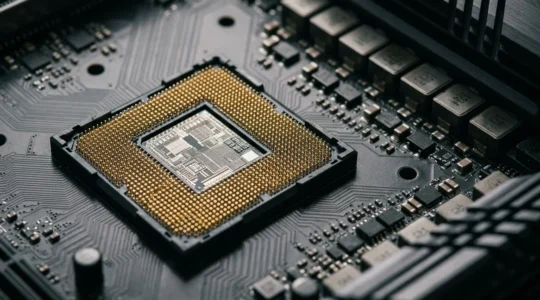
6 Cores vs. 12 Cores: Where Should a Streamer on a Budget *Really* Spend Their Money?
The obsession with high core counts is costing new streamers money that should be spent on a better camera or microphone. For most games, single-core speed dictates your max FPS, not the number of cores. A cheap motherboard can throttle…
Read more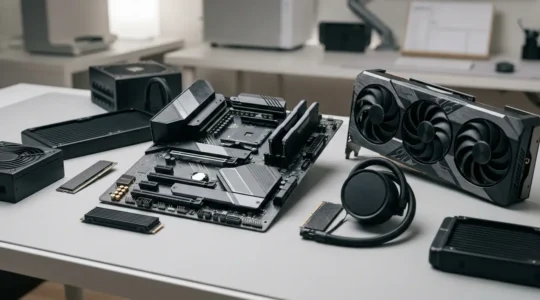
Workstation vs Gaming Rig: Which Build Strategy Maximizes ROI for Video Editors?
The true cost of a video editing rig isn’t the price tag, but the performance lost to hidden hardware bottlenecks that make expensive components underperform. A powerful GPU with insufficient VRAM will cause a “performance cliff” in 4K timelines, negating…
Read more